Are you struggling to access the KNEC CBA portal at cba.knec.ac.ke? You are not alone. With the continuous roll-out of the Competency-Based Education (CBE) system, uploading continuous school-based assessments (SBA) has become a core task for every school head and subject teacher across Kenya.
Whether you are trying to beat the upcoming deadlines or looking for the official guidelines for Grades 3, 4, 5, 7, and 8, this step-by-step walkthrough will help you navigate the system smoothly.
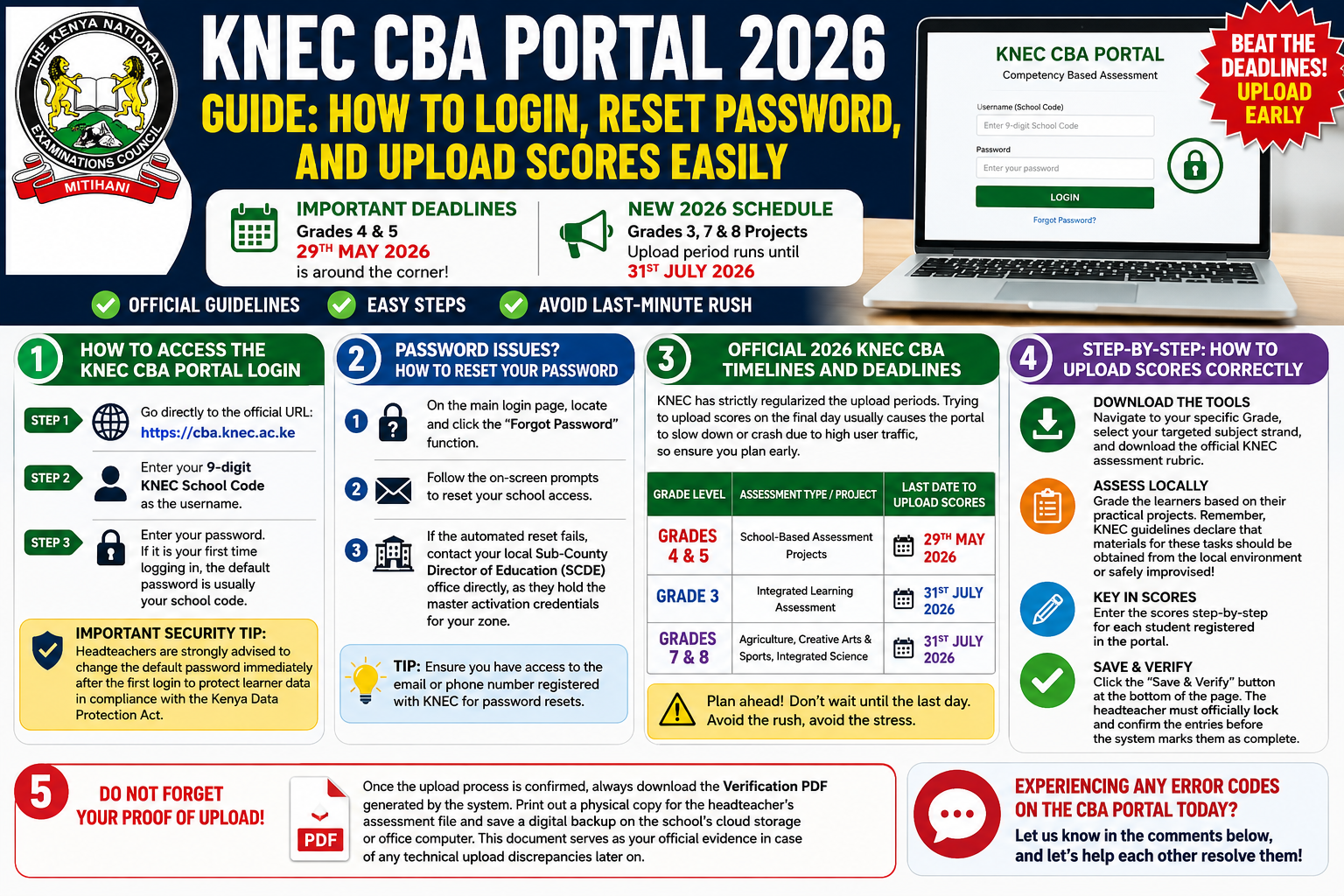
1. How to Access the KNEC CBA Portal Login
To log into the system, always make sure you are using a secure, updated web browser like Google Chrome or Mozilla Firefox.
-
Step 1: Go directly to the official URL: https://cba.knec.ac.ke.
-
Step 2: Enter your 9-digit KNEC School Code as the username.
-
Step 3: Enter your password. If it is your first time logging in, the default password is usually your school code.
Important Security Tip: Headteachers are strongly advised to change the default password immediately after the first login to protect learner data in compliance with the Kenya Data Protection Act.
2. Having Password Issues? How to Reset Your KNEC CBA Password
It is incredibly common for schools to misplace or forget their portal passcodes. If you encounter login errors, do not panic.
-
On the main login page, locate and click the “Forgot Password” function.
-
Follow the on-screen prompts to reset your school access.
-
If the automated reset fails, contact your local Sub-County Director of Education (SCDE) office directly, as they hold the master activation credentials for your zone.
3. Official 2026 KNEC CBA Timelines and Deadlines
The Kenya National Examinations Council has strictly regularized the upload periods. Trying to upload scores on the final day usually causes the portal to slow down or crash due to high user traffic, so ensure you plan early.
| Grade Level | Assessment Type / Project | Last Date to Upload Scores |
| Grades 4 & 5 | School-Based Assessment Projects | 29th May 2026 |
| Grade 3 | Integrated Learning Assessment | 31st July 2026 |
| Grades 7 & 8 | Agriculture, Creative Arts & Sports, Integrated Science | 31st July 2026 |
4. Step-by-Step: How to Upload Scores Correctly
Once logged in, the process requires careful data entry to avoid locking out learners.
-
Download the Tools: Navigate to your specific Grade, select your targeted subject strand, and download the official KNEC assessment rubric.
-
Assess Locally: Grade the learners based on their practical projects. Remember, KNEC guidelines declare that materials for these tasks should be obtained from the local environment or safely improvised!
-
Key in Scores: Enter the scores step-by-step for each student registered in the portal.
-
Save & Verify: Click the “Save & Verify” button at the bottom of the page. The headteacher must officially lock and confirm the entries before the system marks them as complete.
5. Do Not Forget Your Proof of Upload!
Once the upload process is confirmed, always download the Verification PDF generated by the system.
Print out a physical copy for the headteacher’s assessment file and save a digital backup on the school’s cloud storage or office computer. This document serves as your official evidence in case of any technical upload discrepancies later on.
Are you experiencing any specific error codes on the CBA portal today? Let us know in the comments below, and let’s help each other resolve them!
About the Author

Related posts:

Teachers Exposed as TSC Fails to Secure Sh5.3 Billion for Mandatory Insurance Cover

The 30,000 TSC Promotions Dilemma

How to Confirm KJSEA Placement Online

BREAKING NEWS: Fatal Fire at Utumishi Girls Academy in Gilgil Claims Multiple Young Lives